
You can export your subscribers along with their data by going to the MailPoet > Subscribers page. This is useful for creating backups, migrating to another tool, or analyzing your subscriber data outside of MailPoet.
How to Export
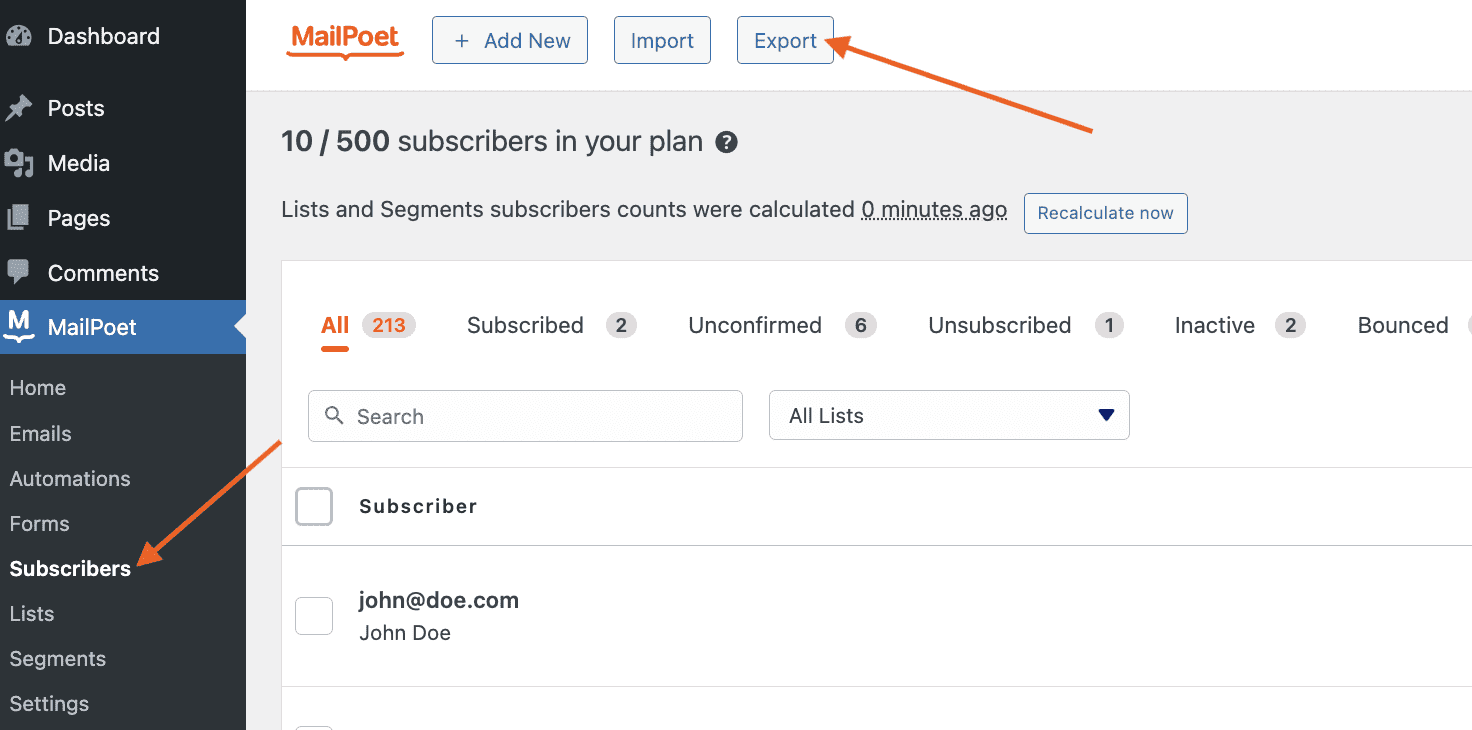
- Go to MailPoet > Subscribers.
- Click the Export button at the top of the page.
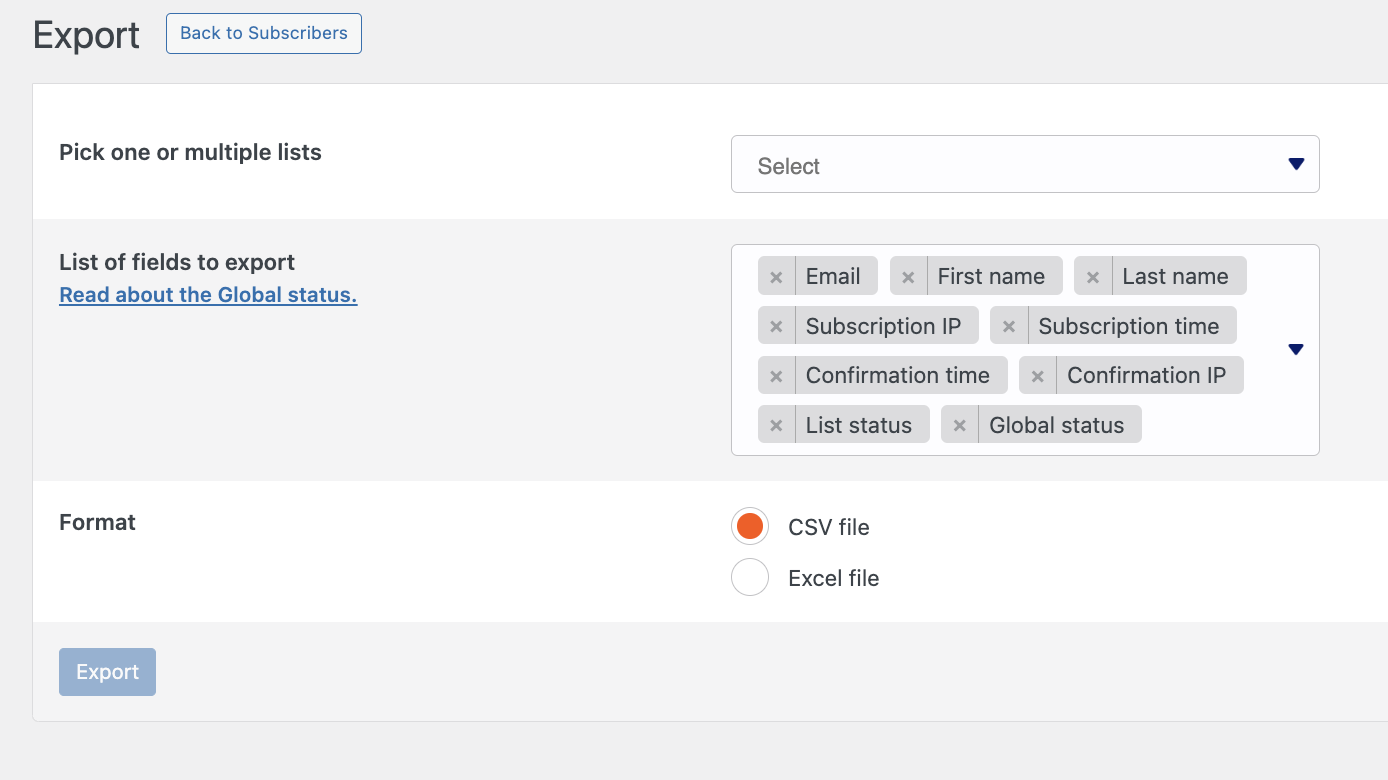
- Select one or more lists or segments to export. You can export multiple lists into a single file, or export them one at a time into separate files.
- Choose the fields you want to include (see below).
- Select your file format: CSV or Excel (XLSX).
- Click Export.
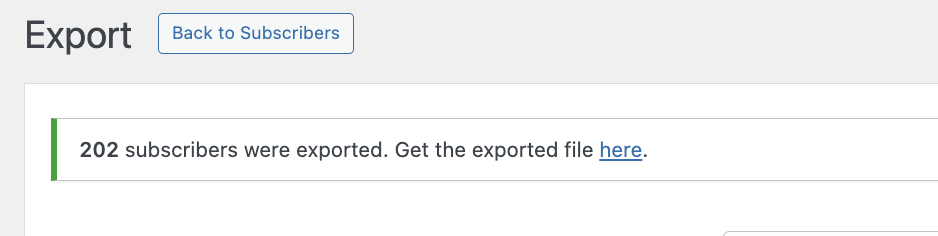
If the download does not start automatically, a message will appear at the top of the page with a link to download the file.
Available Fields
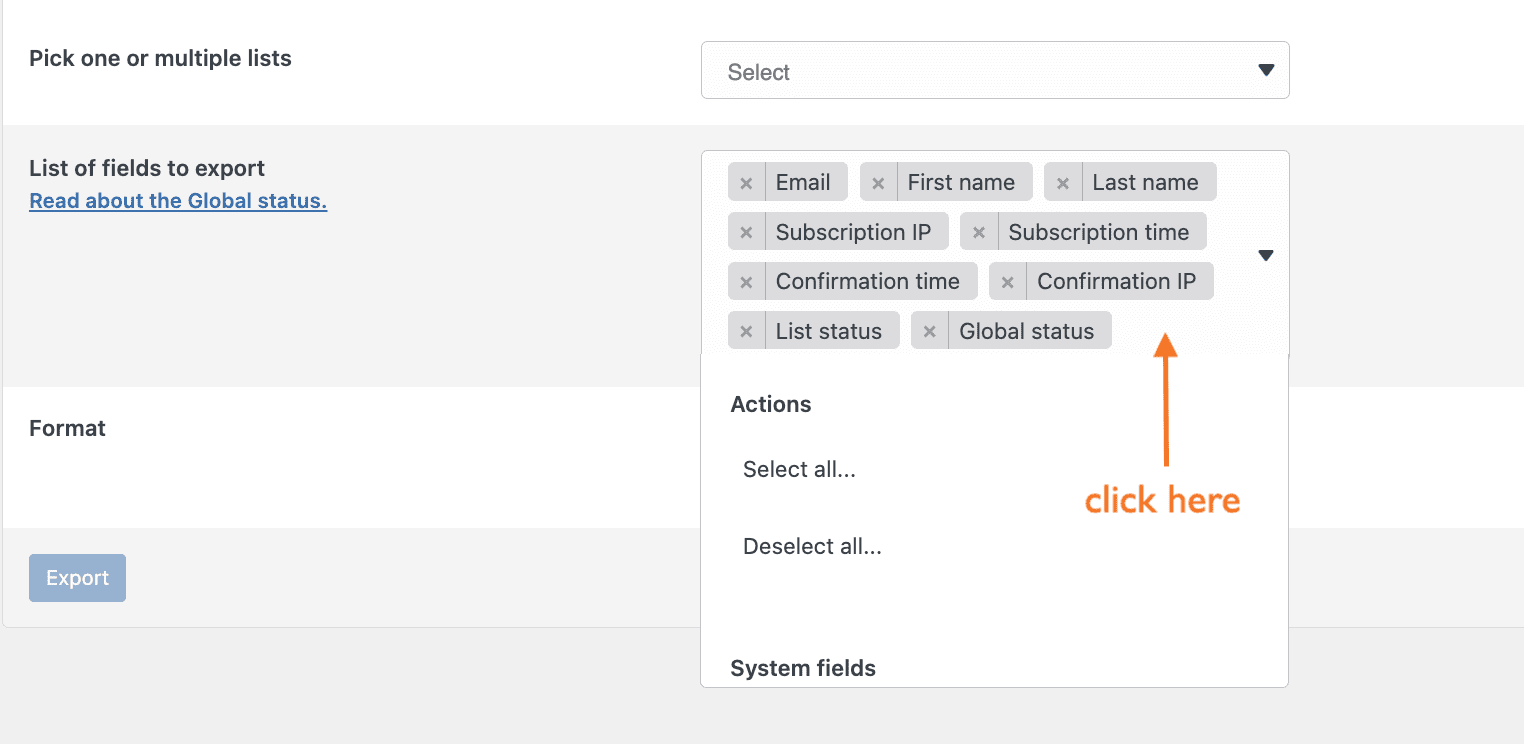
Click the field selector dropdown to see all available options. You can use the Select all and Deselect all actions to quickly manage your selection.
System fields
The following built-in fields are available for export:
- Email — the subscriber’s email address
- First name — the subscriber’s first name
- Last name — the subscriber’s last name
- Subscription IP — the IP address recorded when the subscriber signed up
- Subscription time — the date and time the subscriber was first added
- Confirmation time — the date and time the subscriber confirmed their subscription
- Confirmation IP — the IP address recorded when the subscriber confirmed
- Last subscribed on — the most recent date the subscriber subscribed or resubscribed
- List status — the subscriber’s status within a specific list
- Global status — the subscriber’s overall status across all lists (subscribed, unconfirmed, unsubscribed, inactive, or bounced)
Custom fields
Any custom fields you have created will also appear in the dropdown and can be included in the export.
List column
Every exported file automatically includes a List column showing which list each subscriber row belongs to. If a subscriber is on multiple selected lists, they will appear once per list.
Data Not Available for Export
Some subscriber data is stored in your database but cannot be exported using this feature. This includes:
- Tags — tags assigned to subscribers
- Source — how the subscriber was added (for example, via a form, import, or the API)
- Engagement data — engagement score, last open date, last click date, and other activity timestamps
- Timezone — the subscriber’s timezone
- WordPress user ID — the associated WordPress user account, if any
If you need to access this data, you can export it directly from the MailPoet database tables on your server. Your hosting provider can help you access the database through a tool like phpMyAdmin. The subscriber data is stored in the wp_mailpoet_subscribers table (the wp_ prefix may vary depending on your WordPress configuration).
Troubleshooting
If you see the error “The export file could not be saved on the server,” try the following:
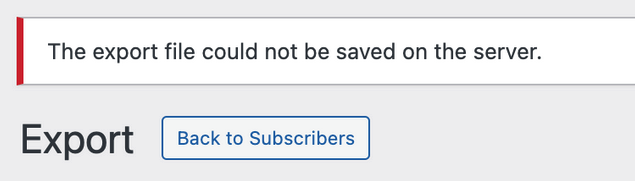
- Check that file and folder permissions on your server are set correctly. Your hosting provider can help make sure your site can write files to the server and that there is enough disk space available.
- Check for any fatal errors in the server’s PHP logs that might explain what is breaking the export.
- Perform a conflict test to rule out issues with code running in your site’s theme or other active plugins.
Note: MailPoet does not store your mailing lists, newsletters, or subscriber data on its own servers. All data is stored in your website’s database.