
Every Newsletter, Post Notification, and other marketing email you send is required to include an Unsubscribe link to allow subscribers to easily unsubscribe from your mailing list. When editing an email, you will be blocked from proceeding to the Send/Activation step if your email does not include an Unsubscribe link:
 There are several options for adding an Unsubscribe link to your emails.
Footer Block
The simplest method for adding an Unsubscribe link is to add a Footer block to your email. By default, the Footer block will include an Unsubscribe link, a Manage Subscription link, and placeholder to add your postal address.

Some notes about the Footer block:
- though it’s a “Footer” block, you can drag and drop it anywhere in your email (not only in the footer) and you can add more than one of them to an email
- you can edit/remove parts you don’t want to include
- you can hit the gear icon for the block to customize the font size & color, background color, alignment, etc
Shortcode – Editor UI
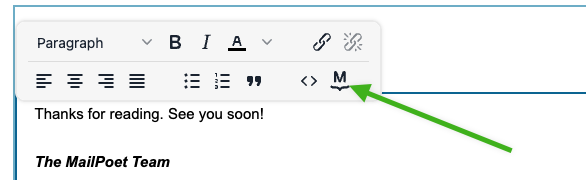
Another option to add an Unsubscribe link is to click the MailPoet “M” logo in the editor’s UI to open a dialog for inserting shortcodes:
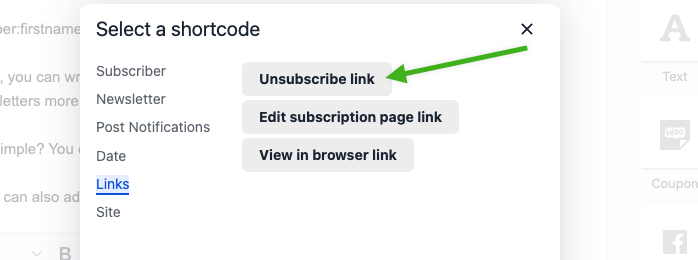
From there, you can click the “Unsubscribe link” option in the Links category to insert an Unsubscribe link:
Shortcode – Manual
Finally, you can manually turn any text/link into an Unsubscribe link by editing it and setting the URL to: [link:subscription_unsubscribe_url]
