
CAPTCHA is an effective tool to help protect your website and improve security by blocking automated spambot attacks on your site’s forms. These bot attacks can lead to significant problems, including causing your MailPoet account to be paused due to excessive hard bounces (by sending to invalid addresses) or spam complaints (by sending to valid addresses where the address owner didn’t consent to the email). CAPTCHA verifies that the data is being submitted by a human, making it difficult for bots to bypass your website’s security and securing your website’s online reputation and user experience.
Quick links:
- Protect your MailPoet subscription form
- Protect your WP and WC registration forms
- Protect 3rd-party forms
Protect your MailPoet subscription form
MailPoet offers three options to add CAPTCHA to your MailPoet subscription forms:
- Built-in CAPTCHA: our own zero-configuration CAPTCHA;
- Google reCAPTCHA;
- Cloudflare Turnstile.
These CAPTCHA settings will only protect the MailPoet forms on your site — they won’t protect other forms on your site such as Contact, Registration, Comments, Reviews, Woo Checkout, etc. If you want to protect the other forms on your site, please check how to protect 3rd-party forms. If you have configured MailPoet to send all of your site’s emails, then we definitely recommend making sure that you have protected those other forms with captcha as well.
To enable this feature you should go to MailPoet > Settings > Advanced tab:

1. MailPoet Built-in CAPTCHA
When the built-in CAPTCHA is enabled and a subscriber submits your MailPoet subscription form, the CAPTCHA challenge appears inline directly within the form (starting with MailPoet 5.18). The visitor can type the characters, refresh the image, or listen to an audio version — all without leaving the page. If a visitor has JavaScript disabled, they are redirected to a separate CAPTCHA page as a fallback. Once they complete the CAPTCHA challenge, they will be added to your list in MailPoet and a confirmation email will be sent to them (if enabled):

You can customize the CAPTCHA fallback page (used when JavaScript is disabled) to match your website’s design. See Customize the Built-in CAPTCHA Page for instructions.
The CAPTCHA page won’t be displayed for users logged in with Editor or Administrator accounts.
If the captcha is not visible for logged-out users and you use SG Optimizer plugin, disable Frontend Optimizations => Minify the HTML Output option.
2. Enabling Google reCAPTCHA
To enable Google reCAPTCHA, you’ll need to sign-up for an API key pair with your Google account at reCaptcha’s website.
MailPoet supports reCAPTCHA v2: “I’m not a robot” tickbox and Invisible reCAPTCHA badge types.

To make sure the reCaptcha will work for all website visitors, including those who have disabled JavaScript in their browser, modify the ” Security Preference” by moving the slider to “Easiest for users”:

After registering a new site, you’ll see your Site Key and your Secret Key:
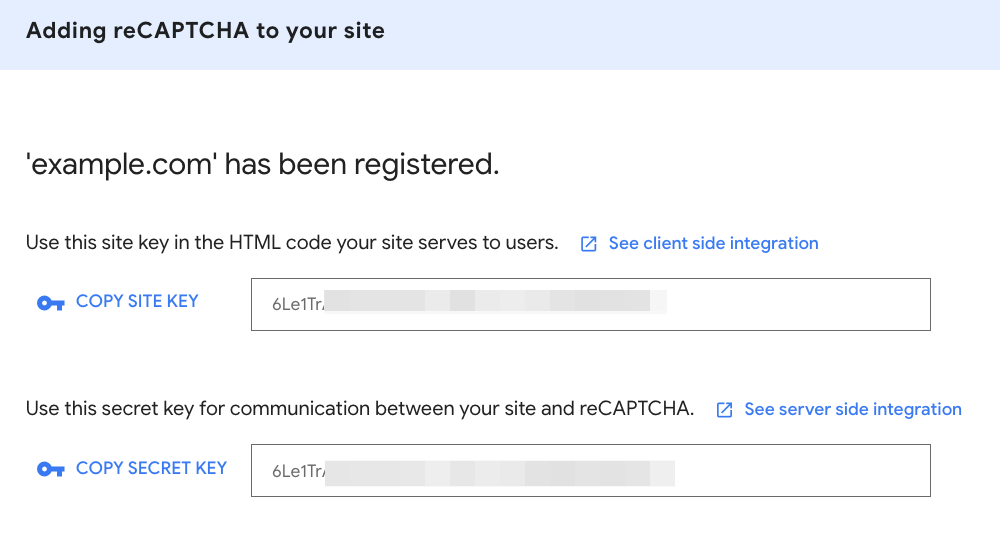
Back in the MailPoet plugin settings on your site, add your keys in the two input fields below the option toggle:

This option is global, so once activated, all of your MailPoet subscription forms will be protected by reCaptcha validation.
3. Enabling Cloudflare Turnstile
Cloudflare Turnstile is a privacy-friendly CAPTCHA alternative that verifies visitors without showing a traditional puzzle in most cases. Turnstile uses smart, non-intrusive challenges that run in the background, so most real visitors are verified automatically without any interaction.
To enable Cloudflare Turnstile, you need a free Cloudflare account and a Turnstile widget:
- Go to the Cloudflare dashboard and sign in (or create a free account).
- In the left sidebar, click Turnstile.
- Click Add widget.
- Enter a name for the widget (for example, “MailPoet Forms”) and add your website’s domain.
- Choose a widget mode. The Managed mode is recommended because Cloudflare automatically decides whether to show a visible challenge based on the visitor’s risk level.
- Click Create to generate your keys.
- Copy the Site Key and Secret Key shown on the confirmation page.
Back in WordPress, go to MailPoet > Settings > Advanced and select Cloudflare Turnstile under the Protect your MailPoet forms against spam signups option. Paste your Site Key and Secret Key into the fields that appear.
This option is global, so once activated, all of your MailPoet subscription forms will be protected by Turnstile validation. Most visitors will see a brief verification that completes automatically. In some cases, Cloudflare may present a simple interactive challenge to confirm the visitor is human.

Protect your WP and WC Registration Forms
Starting with version 5.6.2, MailPoet can protect your WordPress and WooCommerce registration forms with a CAPTCHA. This helps prevent bots from creating fake user accounts, which can lead to unwanted transactional emails (such as “New Account” confirmations) being sent from your site and harming your sending reputation.
This setting protects the following registration forms:
- The WordPress registration form at
/wp-login.php?action=register - The WooCommerce My Account registration form (if WooCommerce is active)
How to Enable It
- Go to MailPoet > Settings > Advanced.
- Find the Protect registration forms option. It is located below the Protect your MailPoet forms against spam signups setting.
- Toggle the setting to enable it.

How the CAPTCHA Type Is Determined
The CAPTCHA type used on your registration forms is determined by the Protect your MailPoet forms against spam signups setting directly above it:
- If you selected Built-in CAPTCHA, your registration forms will use the MailPoet built-in CAPTCHA. After submitting the registration form, the user will be redirected to a CAPTCHA challenge page. Once they complete it, the registration will proceed normally.
- If you selected Google reCAPTCHA v2 Checkbox, a reCAPTCHA checkbox will appear on the registration form. The user must check it before registering.
- If you selected Google reCAPTCHA v2 Invisible, an invisible reCAPTCHA badge will appear in the bottom-right corner of the registration page, and validation happens automatically in the background.
- If you selected Cloudflare Turnstile, a Turnstile widget will appear on the registration form. Verification happens automatically in the background for most visitors, and Cloudflare may present a brief challenge if needed.
- If the subscription form CAPTCHA is set to Disable while Protect registration forms is enabled, MailPoet will default to using the built-in CAPTCHA for your registration forms.
Note: If WooCommerce is not active on your site, this setting will only protect the WordPress registration form. When WooCommerce is active, both the WordPress and the WooCommerce registration forms are protected.
Alternative: Third-party CAPTCHA Plugins
If you prefer to use a third-party solution instead of MailPoet’s built-in protection, you can use one of these plugins to add CAPTCHA to your registration forms:
- CAPTCHA 4WP: protects WordPress Login, WooCommerce checkout and registration form, BuddyPress user registration, bbPress, and other contact forms.
- hCaptcha: protects WordPress Login, WooCommerce checkout and many other third-party forms.
- reCaptcha for WooCommerce (paid): protects WooCommerce checkout and other native pages of WooCommerce and WordPress.
⚠️ Important Notice: Protect Your Woo Store from Card Testing Attacks
If your store is being abused by bad actors using stolen cards to place fake orders or create multiple accounts, this can trigger a high volume of transactional emails (for example, “order created,” “failed payment,” and “account created” emails). This not only risks your store’s security, but these spikes may harm your deliverability and result in your MailPoet sending being temporarily suspended.
In addition to protecting your forms with a CAPTCHA, you should also review WooCommerce’s recommendations for preventing card testing attacks:
Card Testing Protection
Protect your 3rd-party forms
If you have a contact form on your site that is not protected with CAPTCHA, it can get attacked by bots and send emails containing blacklisted links. We would recommend that you protect all of the forms on your site with CAPTCHA, including contact forms, comment sections, and registration forms on your blog.
- reCAPTCHA and Contact Form 7
- reCAPTCHA and Elementor
- CAPTCHA and Gravity Forms
- CAPTCHA and comment forms
- Akismet Spam Protection (protects comments, and WordPress plugin forms such as Jetpack, Contact Form 7, Gravity Forms, Formidable Forms, and others)
You must be logged in to post a comment.