
You can personalise your newsletters by including personalisation tags, which dynamically display details about your subscribers, your content, specific dates, and more.
They work in two different places:
- In the Subject line of your newsletter,
- In the Email Editor.
Quick link: See the full list of available shortcodes
In the Subject line
Simply add the shortcode of your choice in the Subject line of your newsletter:
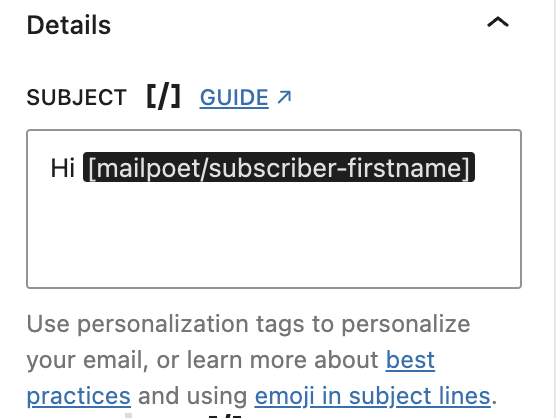
In the Email Editor
To add a personalization tag or a default text (where the information is missing), click on any text block inside the newsletter designer and use the following button:

You will see a full list of available personalization tags. Pick the one you want to be added to your text block and click “Insert”.
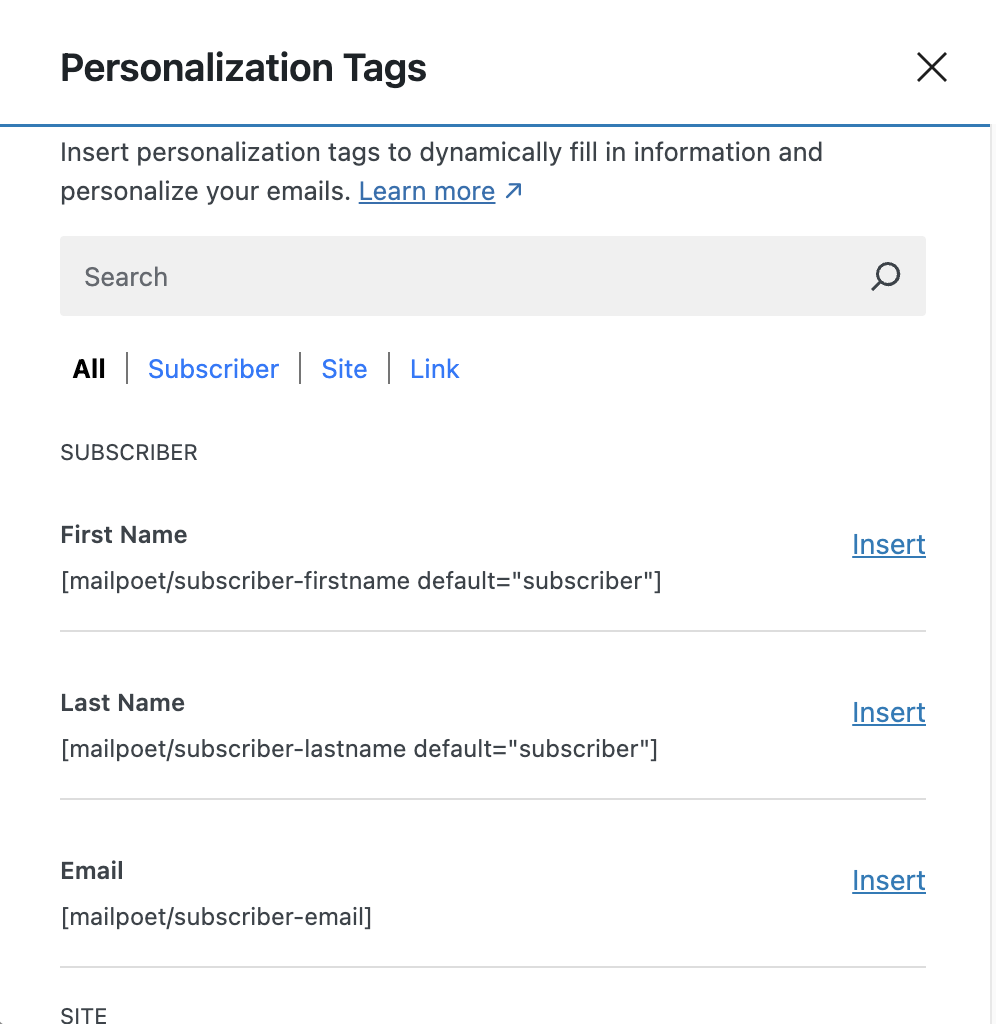
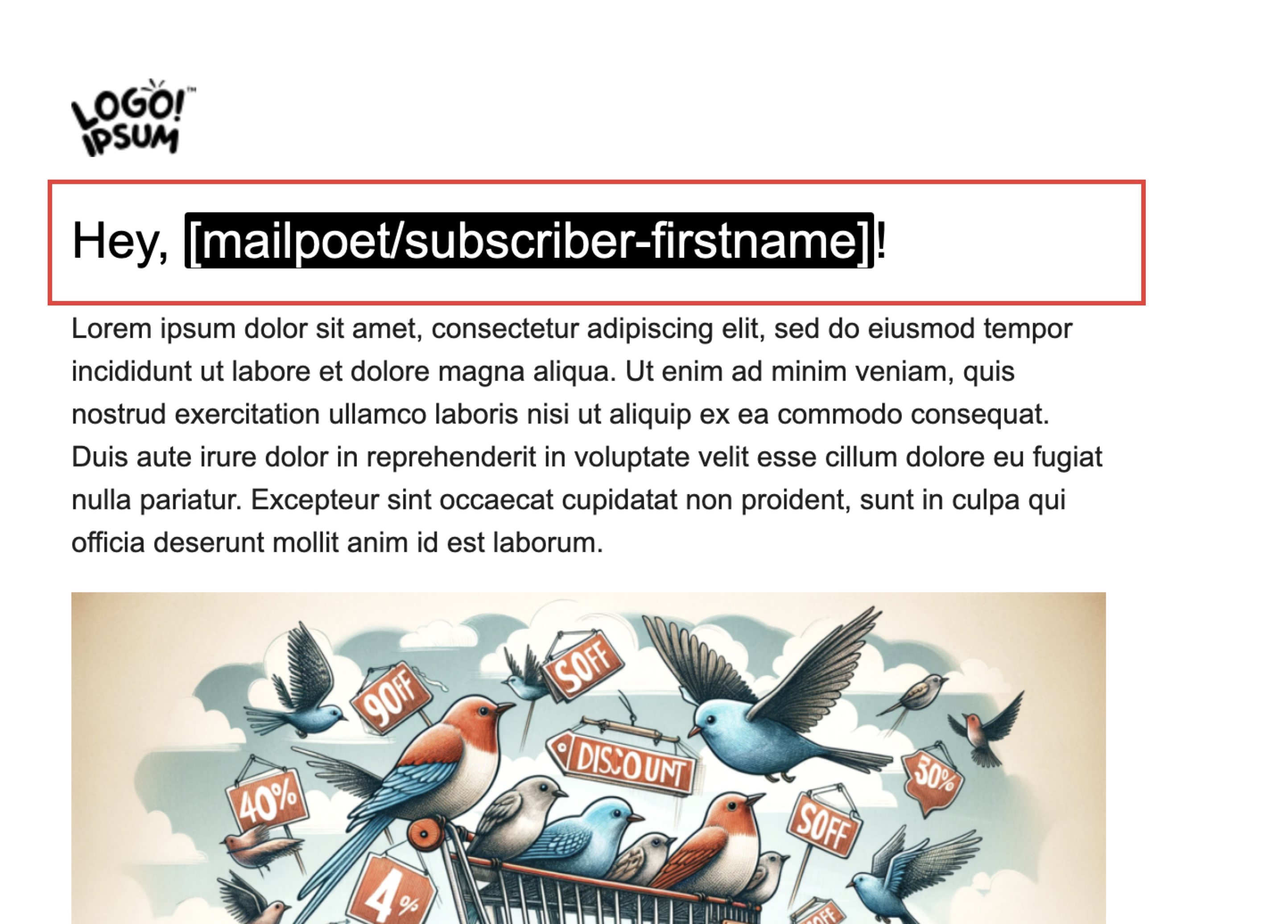
The text after the parameter “default” will be used when the first name is not found on the subscriber’s records. By using word “subscriber” it will display “Hey, subscriber!”
Full list of available personalization tags
Subscriber:
- First Name: [mailpoet/subscriber-firstname default=”subscriber”]
- Last Name: [mailpoet/subscriber-lastname default=”subscriber”]
- Email: [mailpoet/subscriber-email]
- WordPress User Display Name: [mailpoet/subscriber-displayname default=”member”] — Displays the subscriber’s WordPress display name. If the subscriber is not a WordPress user, the default value is used instead.
- Total Number of Subscribers: [mailpoet/subscriber-count] — Displays the total number of subscribed subscribers on your site.
- Custom Fields: [mailpoet/subscriber-cf-{id}] — Displays the value of a custom field you have created in MailPoet > Subscribers > Custom fields. Replace
{id}with the numeric ID of the custom field. If you collect dates using a custom field, you can format the output with theformatparameter, for example[mailpoet/subscriber-cf-123 format=”F j”]. The format value accepts any PHP date format string.
Newsletter:
- Newsletter Subject: [mailpoet/newsletter-subject] — Displays the subject line of the current email.
Date:
- Current day of the month number: [mailpoet/date-day]
- Current day of the month in ordinal form (for example, 2nd, 3rd, 4th): [mailpoet/date-day-ordinal]
- Full name of current day: [mailpoet/date-day-name]
- Current month number: [mailpoet/date-month]
- Full name of current month: [mailpoet/date-month-name]
- Year: [mailpoet/date-year]
Site:
- Title: [mailpoet/site-title]
- Description: [mailpoet/site-description] — Displays your site’s tagline as configured in WordPress > Settings > General.
- Homepage URL: [mailpoet/site-homepage-url]
Links (only available for the newsletter editor):
- Unsubscribe: [mailpoet/subscription-unsubscribe-url]
- Manage subscription: [mailpoet/subscription-manage-url]
- View in Browser: [mailpoet/newsletter-view-in-browser-url]
- Tracking Opt-Out: [mailpoet/subscription-tracking-opt-out-url] — Provides a link for subscribers to opt out of email open and click tracking. See How to Let Subscribers Opt Out of Email Open and Click Tracking for details.
Note: The tags listed above use the block email editor format (for example, [mailpoet/subscriber-firstname]). If you are using the classic MailPoet editor, the equivalent shortcodes use a different format (for example, [subscriber:firstname]). See Personalize Newsletter with Shortcodes for the classic editor shortcode list.
WooCommerce (available in automation emails):
When you edit an automation email in the block email editor, MailPoet automatically loads additional WooCommerce personalization tags based on the trigger used in that automation. These tags appear in the personalization tag picker alongside the standard Subscriber and Site tags listed above. You do not need to configure anything — the tags are added automatically when the required automation subject is present.
The following tag categories become available depending on the automation trigger:
- Order tags — available when the automation uses an order-related trigger (such as Order Completed, Order Status Changed, or User Abandons Cart). These include order details such as order number, order date, billing name, and order total.
- Customer tags — available when the automation uses a trigger that includes a WooCommerce customer subject. These include customer details such as customer name, email, and address information.
- Store tags — always available in automation emails, regardless of the trigger type. These include store-level details such as store name and store URL.
These tags work in the email body, subject line, and preview text. When you send a preview email, MailPoet renders sample data so the tags display correctly even without a real order or customer.
The following tag is specifically registered by MailPoet for order-triggered automations:
- Order Review URL: [woocommerce/order-review-url] — Generates a direct link to the WooCommerce Review Order page for the customer’s specific order. Requires WooCommerce 10.8.0 or later with the “Customer review request” feature enabled. See How to Send a Post-Purchase Review Request Email for setup instructions.
Note: WooCommerce personalization tags are only available in automation emails created with the block email editor. They do not appear in regular newsletters or post notification emails. If you do not see the WooCommerce tags in the personalization tag picker, make sure your automation uses a WooCommerce trigger and that you are editing the email with the block editor.